

The annotations and comments added to your video files can now be downloaded at the retouching stages, just like those for photos. Find all your instructions directly accessible to facilitate the retouching work.
In the retouching phase:
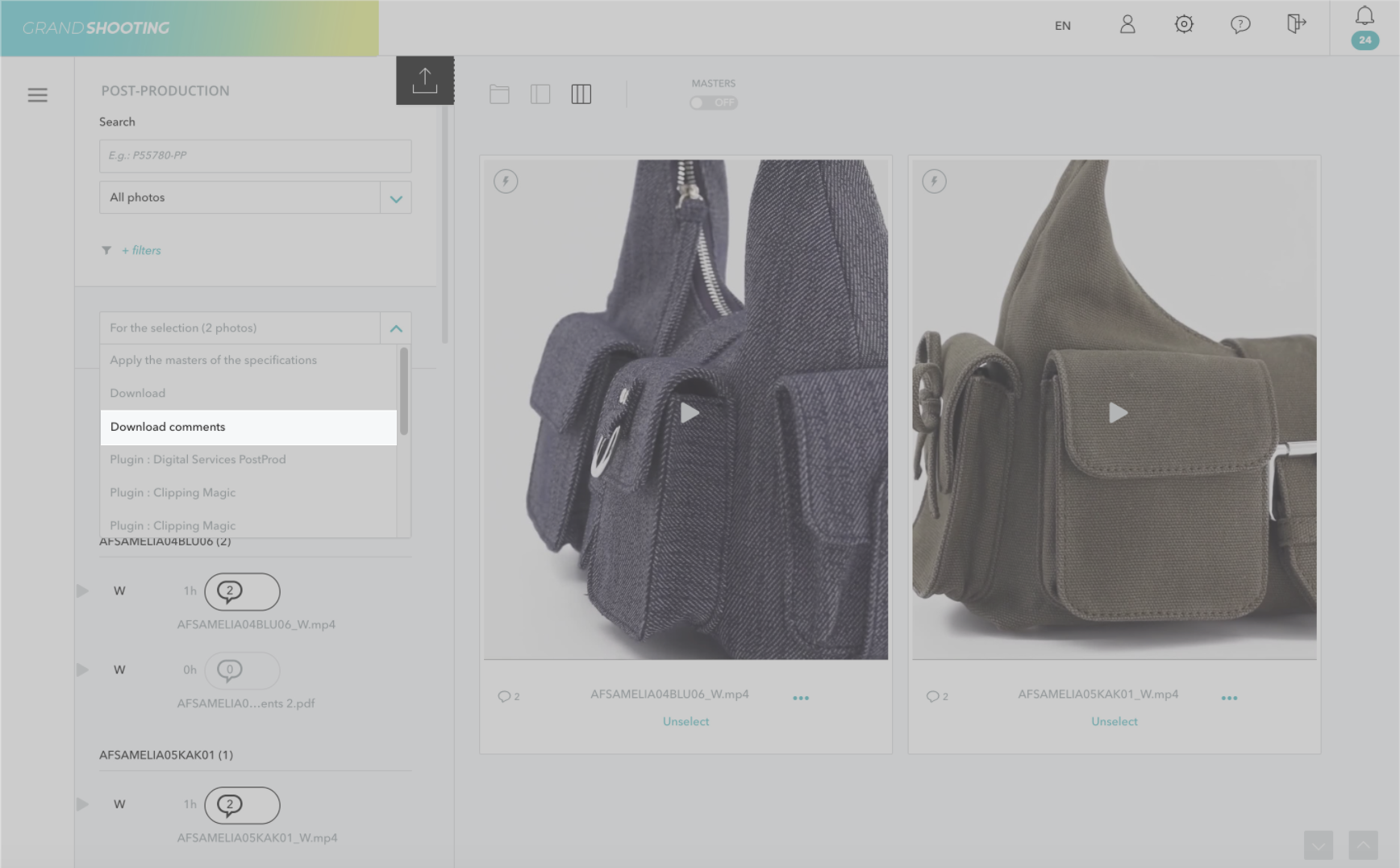
A PDF file is generated for each video, containing the annotated frames with retouching instructions.
Unlike the {$view} function, which is based on the view codes from the Specifications, {$inc_view} generates an automatic sequential numbering. There may be times when you need to adjust the order of the views (for example, swapping views 1 and 2).
Now, modifying the VIEW column in the renaming table at the Approval stage automatically updates the file name, thus aligning the behavior of {$inc_view} with that of {$view}.
Benefit: More intuitive and consistent renaming, saving you time when adjusting the order of your views.
When your products and photos have already been processed once by Grand Shooting, modifications of images in Mirakl do not automatically trigger a new retrieval. A hybrid mode is now available to address this issue: adding an extra field start_history_date in the Grand Shooting catalog allows for the forced retrieval of new photos after an initial synchronization.
Principle: Grand Shooting ignores all photos uploaded before the defined date and retrieves only those uploaded after this date. Ideal for reprocessing products whose images have been modified in Mirakl.
[[gsGoodToKnow title="Implementation"]]
Step 1: Prepare your catalog
Step 2: Modify your references on Grand Shooting
Step 3: On Mirakl's Side
[[/gsGoodToKnow]]
💡 Example: By setting the date to 15/10/2024, only photos added in Mirakl after this date will be retrieved and processed.