
Renaming in the Approval stage allows for changing file names, correcting References, adjusting view codes, and updating the catalog via an advanced table. Changes automatically affect all files of the concerned Reference.
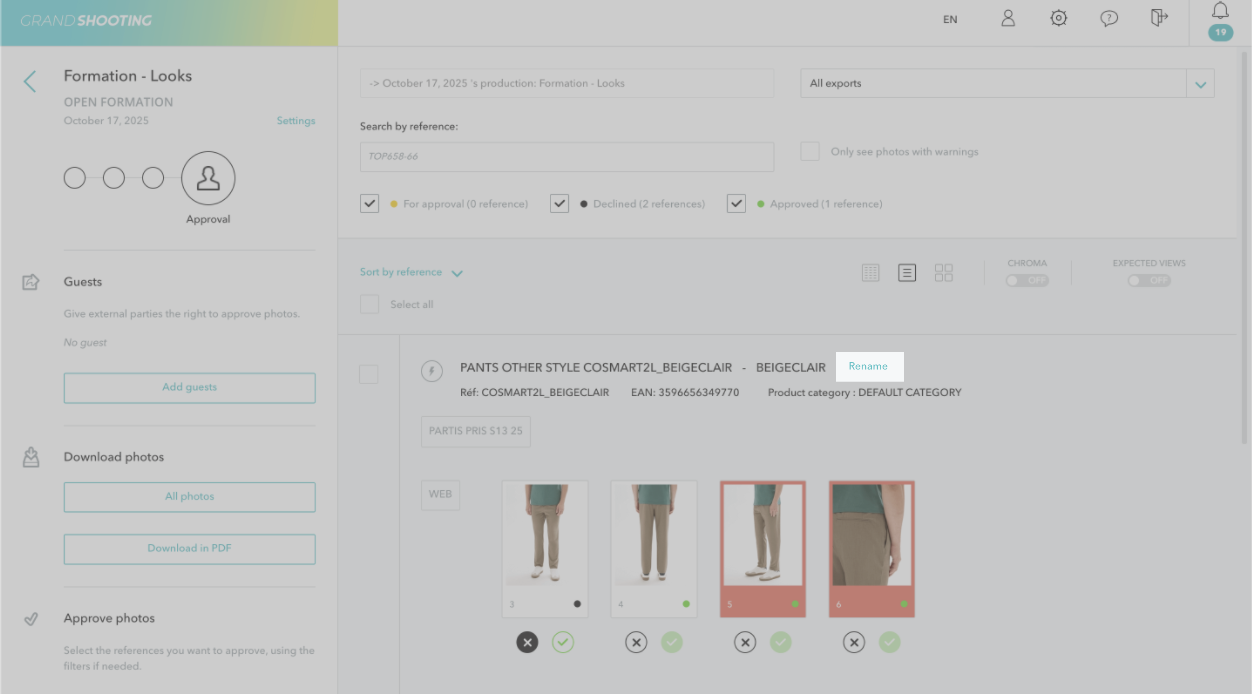
There are three ways to rename in approval:

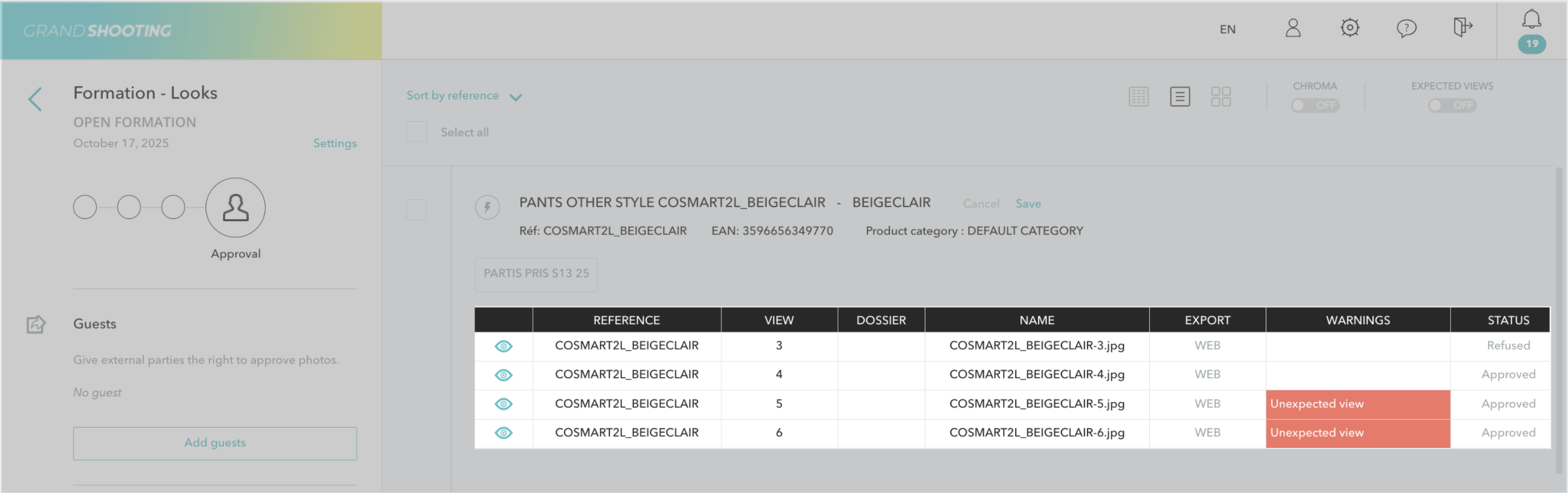
The table displays a line per selected file and consists of several columns:
[[gsTable]] | Reference | Product Reference from the Catalog | ✅ Editable |
| View | File view code | ✅ Editable |
| [Custom Variables] | Dynamic columns according to the export pattern (e.g., Collection, Brand, Color...) | ✅ Editable |
| Folders | File storage folder | ✅ Editable |
| Name | File name generated automatically | ✅ Editable |
| Exports | Name of the export used for naming | ❌ Not editable|
| Alerts | Reason for the alert if present | ❌ Not editable |
| Status | File status | ❌ Not editable |
{zebraLeftColHeader}
[[gsGoodToKnow title="Good to Know"]]
The columns of custom variables (Collection, Brand, Color, etc.) only appear if they are used in the export naming pattern.
[[/gsGoodToKnow]]
.gif)
When editing the Reference column, Grand Shooting automatically suggests corresponding references from the catalog.
As in Excel, it is possible to drag a cell downwards:
⚠️ Attention: This action copies the value, it does not increment it automatically.
Finally, remember to Save to record the changes or click on Cancel to abandon the changes.
When a column corresponding to a catalog variable is modified (that is, the exports rely on fields filled in the catalog, like Collection, Brand, Color...), two actions occur automatically:
Example:
Changing the Collection from "WINTER2024" to "SUMMER2024" on a file of the reference ROBE-123.
[[gsGoodToKnow title="Good to Know"]]
If the pattern uses the variable {$PICTURE_REF} (reference extracted from the Live), the file name does not change when modifying the catalog reference. Only the association between the file and the catalog reference is modified.
[[/gsGoodToKnow]]
The Folders column allows defining where the file will be stored upon download.
Folders can be generated automatically based on the export settings. If the exports are based on a catalog field, then modifying this field changes the folder name (and the catalog field).
Simply enter the folder name in the cell: AH24.
Use the / to create subfolders: AH24/E24 → The file will be placed in the folder AH24, then in the subfolder E24.
[[gsGoodToKnow title="Good to Know"]]
[[/gsGoodToKnow]]
The Alerts column indicates if there is a problem with the file. Here are the alerts related to renaming:
When the error is corrected via renaming, the alert disappears automatically!
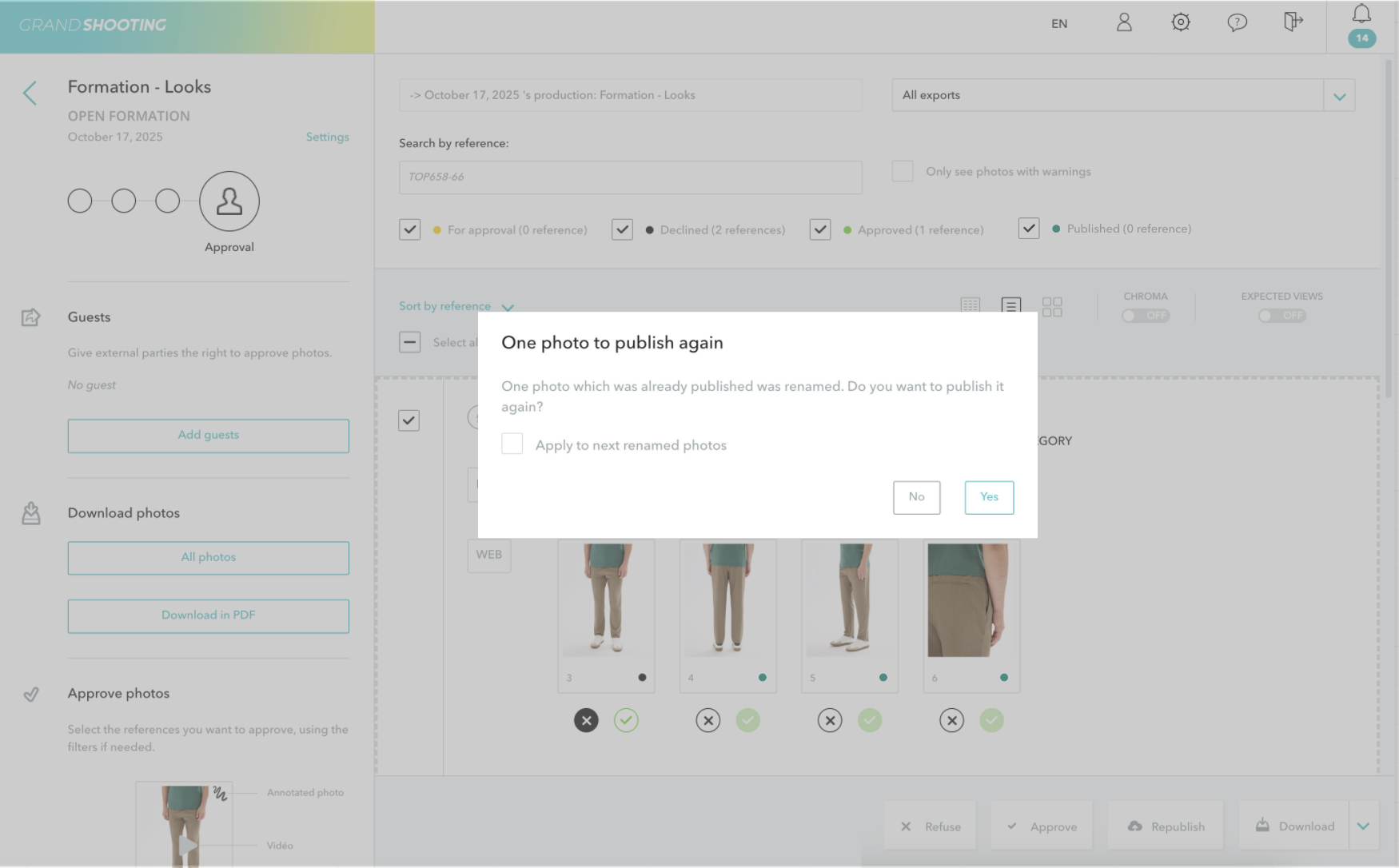
If a file with the status Broadcasted is renamed, a pop-up appears after saving to propose re-broadcasting the file. It is possible to check Apply to next renamed files to automate re-broadcasting during future renamings.
All renamings are traced in the file's history, accessible from the zoom. The history is unlimited, non-editable, and visible to all users.


