The Grand Shooting catalog allows you to add custom columns to enrich your references with information specific to your business needs. These custom columns are visible in the catalog, exportable, and importable via file.
Prerequisites
To customize the catalog columns, you must be an administrator of your Grand Shooting account.
Accessing the Catalog Configuration
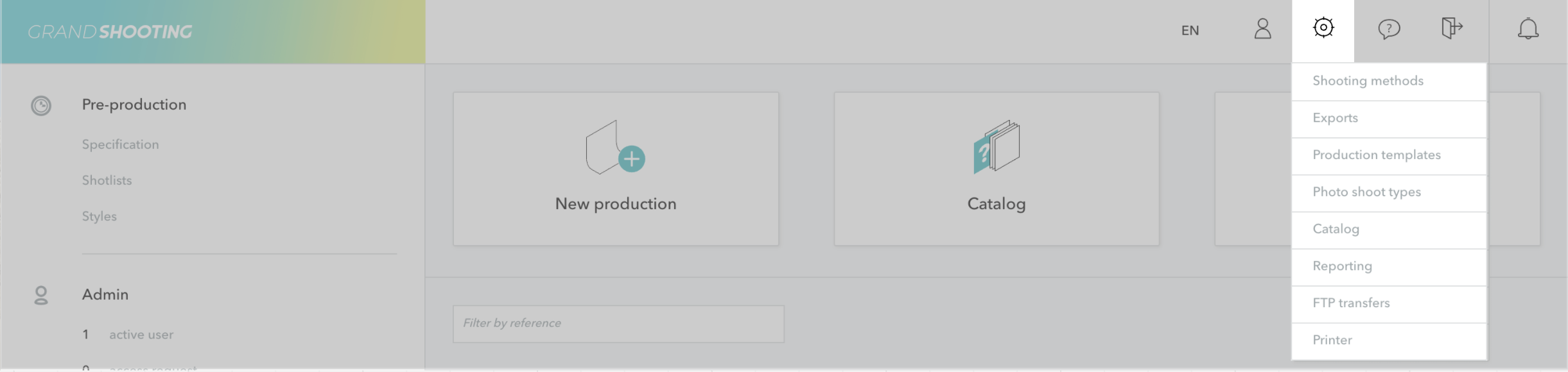
From the homepage, click on the Settings icon (gear wheel)
Click on Catalog in the sidebar menu
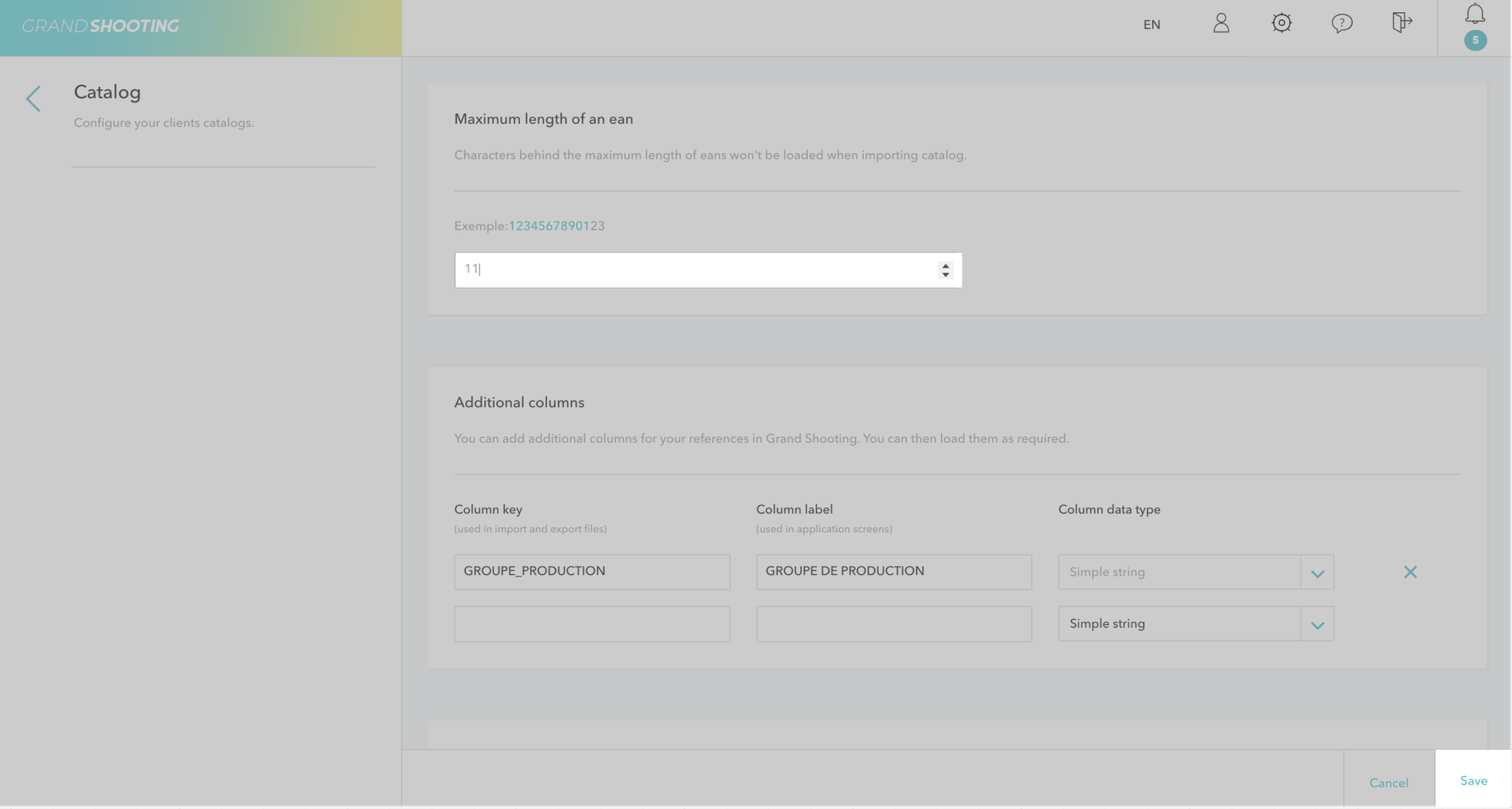
The page is divided into 3 different sections.
Maximum Length of an EAN
The maximum length of an EAN defines the number of characters taken into account when importing a catalog or searching by barcode. Characters beyond this length are automatically ignored by Grand Shooting.
In some management systems, additional information is added to the end of the EAN code, such as:
The product size
A color variant
An internal code
For example, a standard 13-character EAN 1234567890123 can become 1234567890123001 with a size code added. This setting allows you to automatically standardize your EANs without having to manually modify your import files.
The process is as follows:
You set a maximum length of 13 characters
Your Excel file contains an EAN of 25 characters: 1234567890123234567890123
Grand Shooting will only take into account: 1234567890123
The additional 12 characters will be ignored
Configuring the Length
In the Maximum Length of an EAN section, enter the desired number of characters
Click on Save at the bottom of the page
Impact of This Setting
This limitation applies during:
The import of a catalog via Excel or CSV file
A search by EAN in the Grand Shooting interface
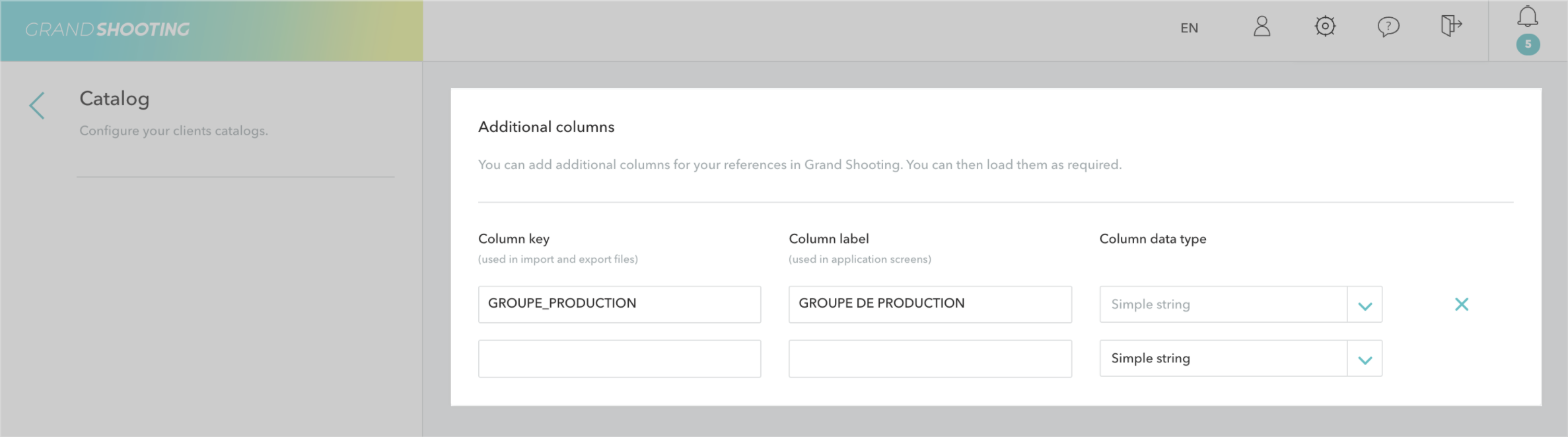
Additional Columns
Additional columns allow you to load extra information on top of the default columns to better adapt to your organization.
Adding a New Column
In the Additional Columns section, you will find a table with three columns to fill in:
Column Key: Technical identifier used in import and export files
Use simple characters, without spaces or special characters
Column Label: Name displayed in the Grand Shooting interface
Choose an explicit name for your teams
Example: "Date of stock reception", "Segmentation", "PRODUCTION GROUP"
Column Content Type: Format of the column data
Simple string: Short text on one line
Text (multiple lines possible): Long text with line breaks
Integer: Whole numerical values
Array: List of values
Date: Date format
Once your fields are completed, click on the Save button at the bottom of the page.
Modifying or Deleting a Column
To modify: Directly change the values in the concerned fields, then save
To delete: Click on the X to the right of the line, then save
Deleting a column will result in the values not being displayed in the application.
Using Your Custom Columns
In the catalog:
Once created, your custom columns automatically appear:
1. In the detail view of a Reference
Open a Reference from your catalog by clicking on +detail
The custom fields are displayed in the list of information
Click on Modify to enter or modify the values
2. In the summary table
From the list of References, click on the Summary Table icon
Your custom columns appear in the table
This allows you to view and compare the data of all your References
Import of Data:
To feed your custom columns via an import file:
Create your Excel file using the Grand Shooting template
Add a column with exactly the Column Key defined in the settings Example: If your key is GROUPE_PRODUCTION, your Excel column should be named GROUPE_PRODUCTION
Import your file
Export of Data:
When exporting your catalog, your custom columns are automatically included in the file.
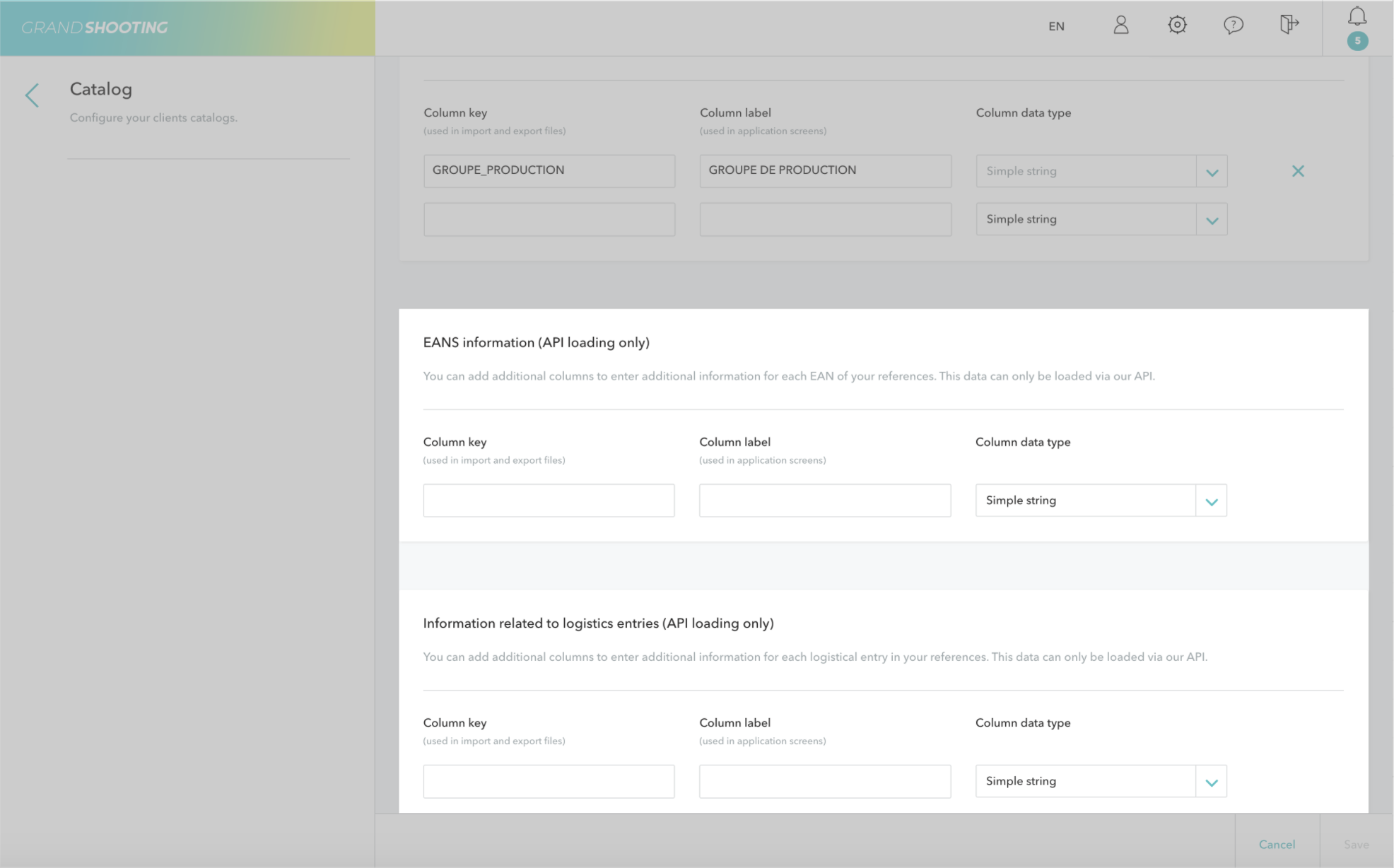
API-Specific Columns
Two additional sections allow for adding columns fed exclusively via the Grand Shooting API:
Information related to EANs Each REF can be associated with several EAN codes. It is possible to add additional data for each of the EANs. For example, the size of the product for each barcode.
Information related to logistic entries In case of using the logistics module via our API, each Reference is subject to stock entries and exits. It is possible to add columns to associate information related to stock movements. For example, the source warehouse, a reception number, etc...
These columns function in the same way, but their feeding is done exclusively via our API.