
You are in charge of retouching a production on Grand Shooting, and you only have 5 minutes to start? You are in the right place!
Grand Shooting will allow the synchronization of files uploaded by the digital operator as well as your local folder containing the edits.
To do this, you just need to install the Grand Shooting synchronization client. It is a small software that works a bit like Dropbox, except that files never leave the Grand Shooting infrastructure, ensuring their confidentiality.
First, install the synchronization client:
Install and launch the client. The first page will ask you to add a user. You will be redirected to a web page to log in. If you do not remember the password you set when creating your account on Grand Shooting, you can go to https://app.grand-shooting.com/login and click on the link "Forgot password?".

Once connected, the client displays the list of productions for which you have access rights:

If you do not have access, you will need to ask the producer of the shoot to give them to you via the production settings.
The raw files are available in the Live stage.
Click on the Live button of the production to download. The list of files deposited by the capture manager appears.
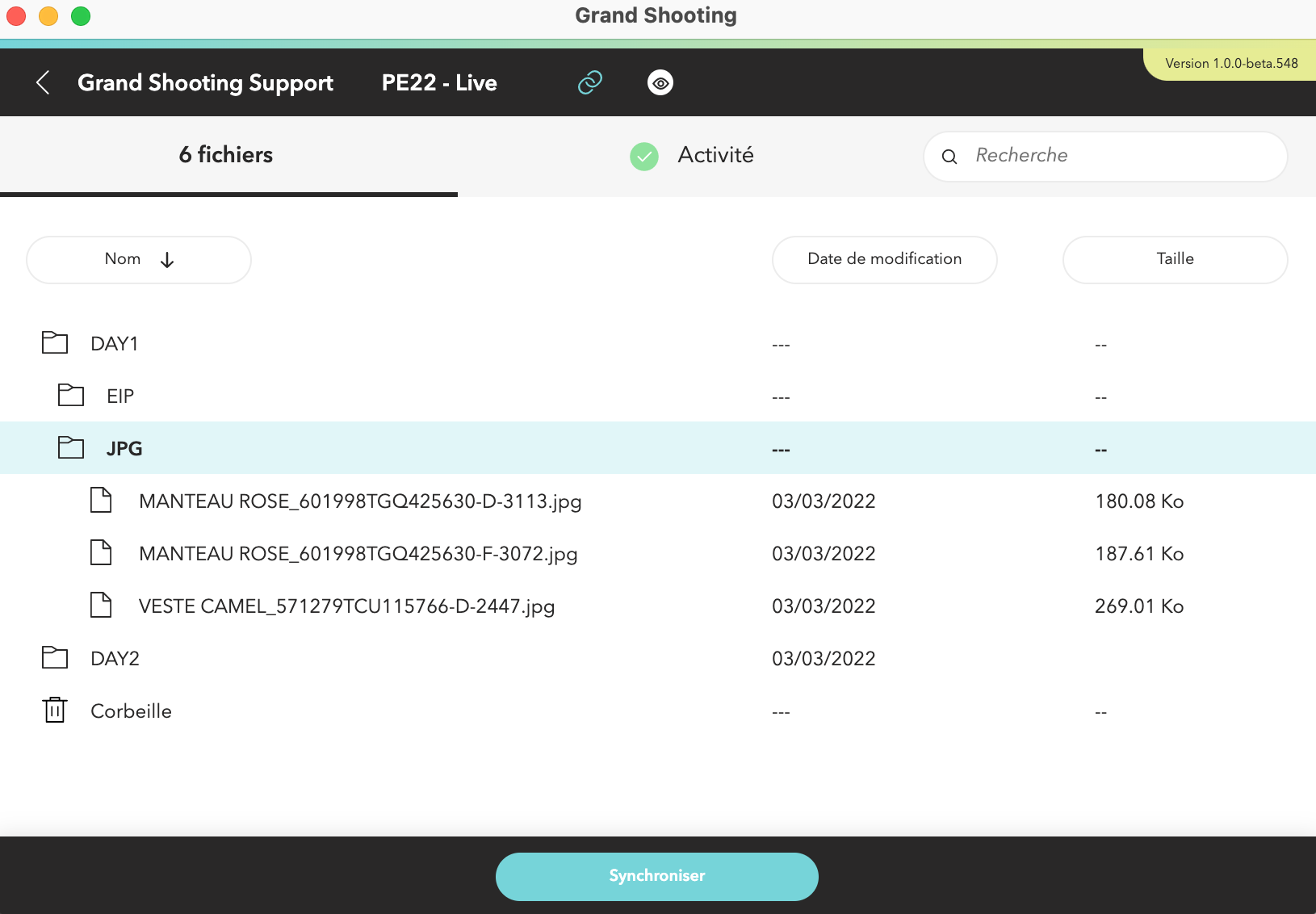
Click on "Synchronize" then choose the local folder where the photos will be downloaded: all files will be downloaded under the same structure as that deposited by the capture manager.
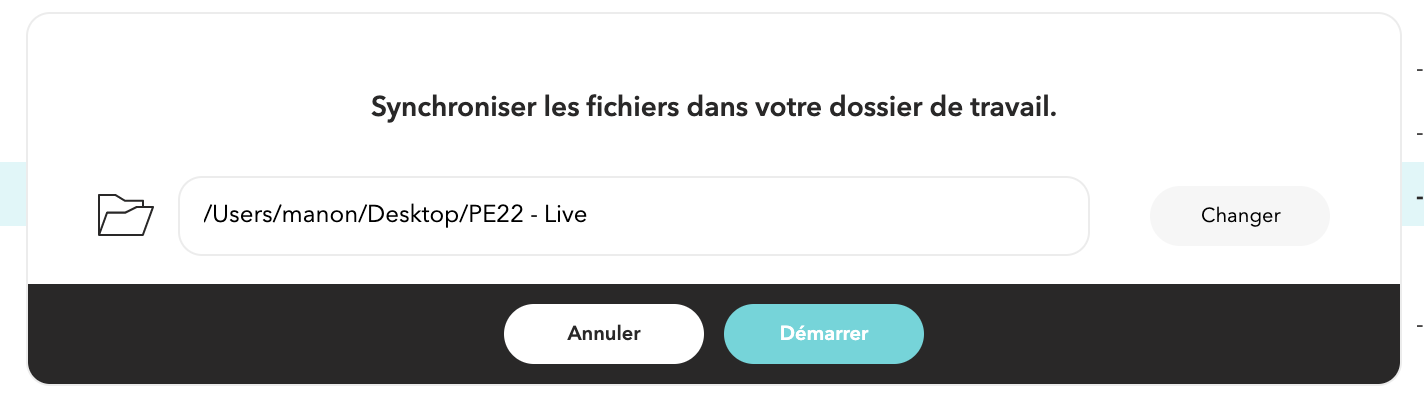
It's done! All photos uploaded to Grand Shooting will be synchronized in your folder. If the shoot is still ongoing, then the files will be downloaded to your computer as they are uploaded by the digital operator or the photographer.
Note: as an editor, you have read-only access to the Live folder. You cannot modify its content.
The edits are to be uploaded in the Phase 1 stage.
Access the Phase 1 stage:

Then in the same way as the previous step, click on "Synchronize" and choose the folder to synchronize.
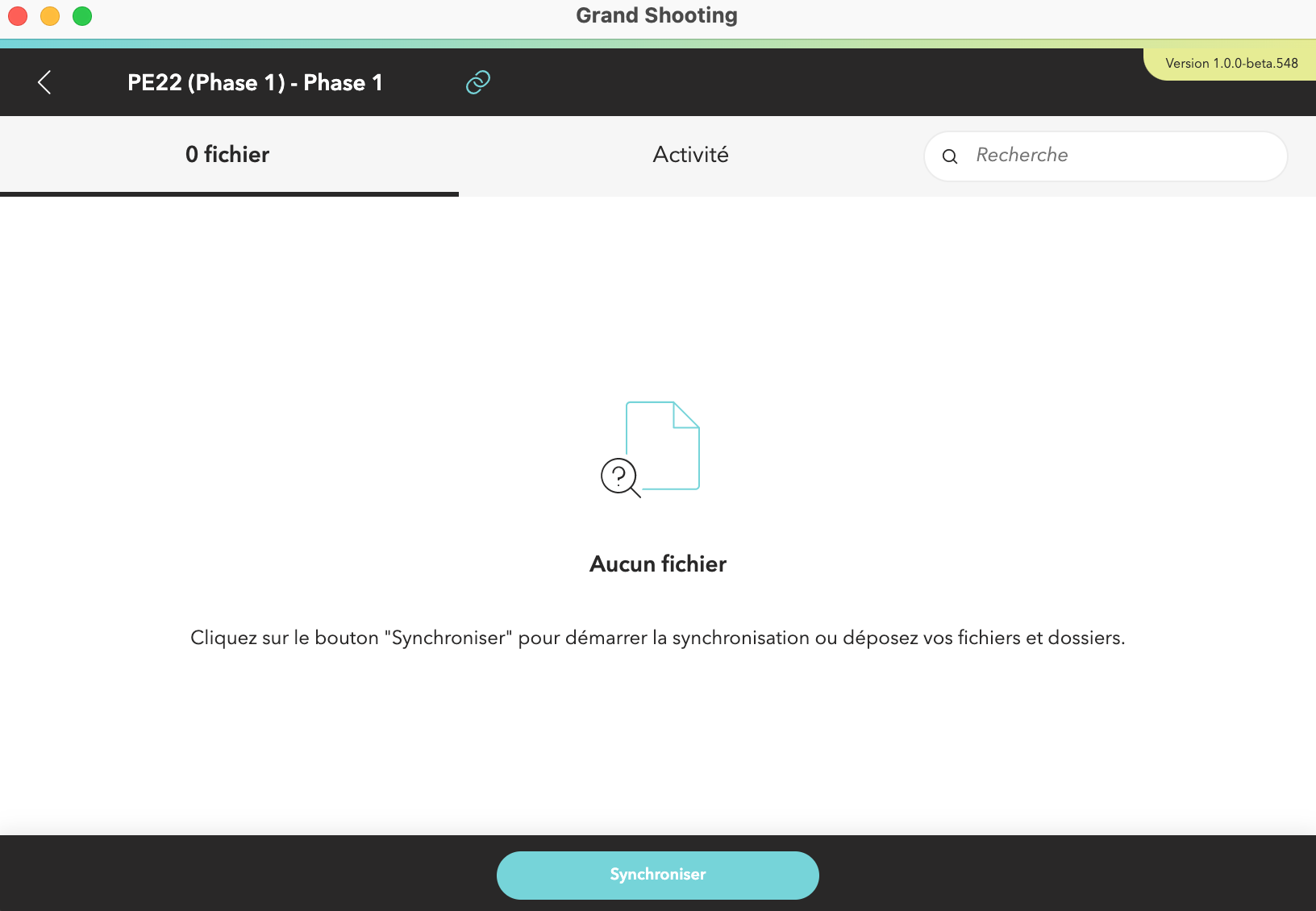
Once synchronization is activated, all files saved in your local folder or one of its subfolders will be uploaded to the server and will automatically appear on the synchronization client and on Grand Shooting.
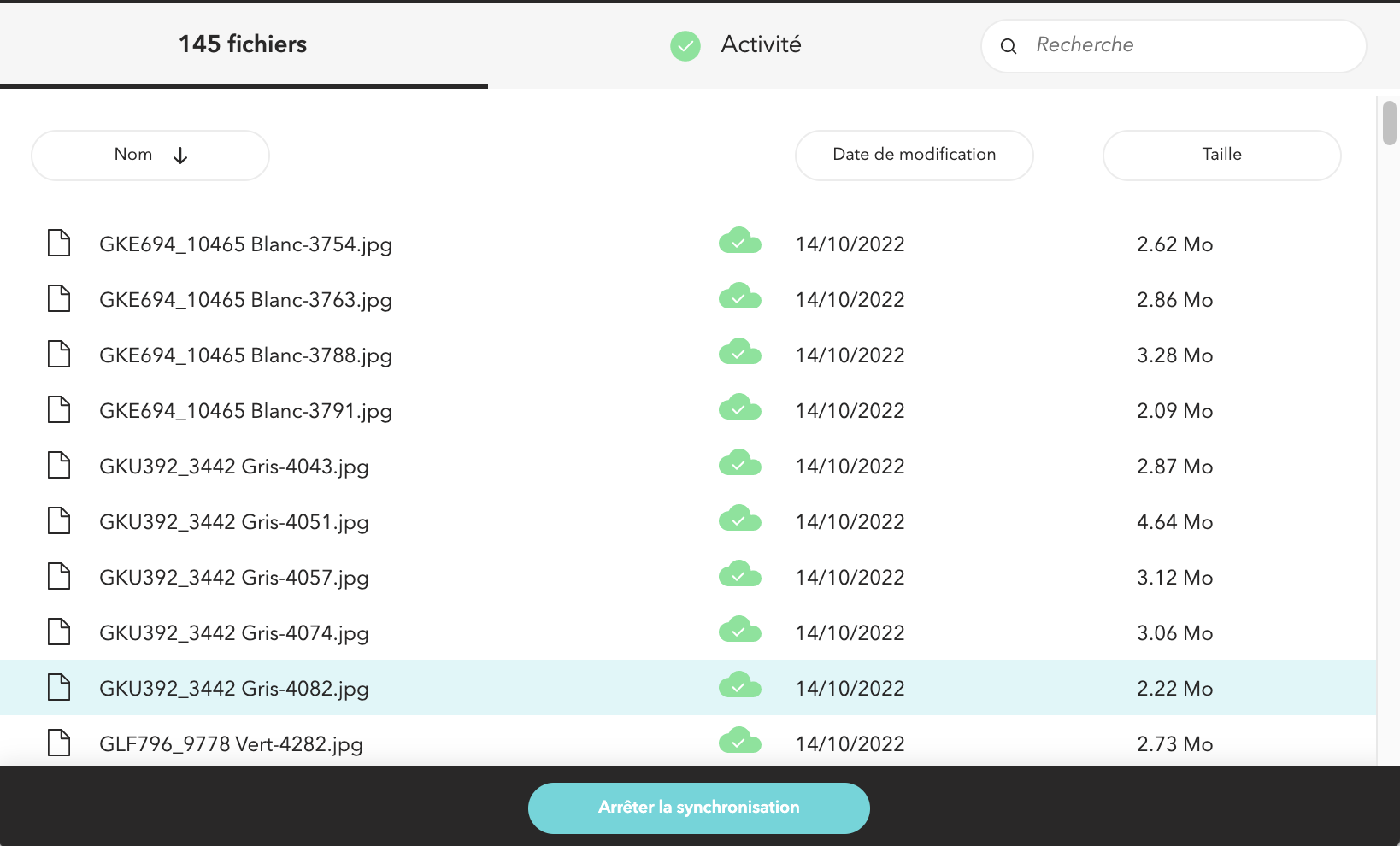
If the editing is still in progress, the files will be uploaded to the platform as the different deposits are made.
The modifications made in your local folder affect the display of images on Grand Shooting: if you delete images from the synchronized folder, then the images will be deleted from Grand Shooting. The same applies in case of addition, renaming, or moving.
To view the uploading of images on the Grand Shooting web platform, click on the blue link next to the green cloud. You will be redirected to the current stage.

At the end of the editing, we recommend you to Stop synchronization. Thus, all files will be secured, no deletion or modification can take place on the web platform.

To learn more about the synchronization client, visit the complete documentation.


