
The specifications document is one of the cornerstones of Grand Shooting. It centralizes all the production specifications for your brand: how many files are needed for each type of product? What formats are expected for online posting? Which Shooting Methods to use?
By setting up your specifications, you will be able to:
✅ Standardize your productions: define precisely what is expected for each type of product
✅ Track your progress: view in the catalog what has been shot, what remains to be done, and by which methods
✅ Facilitate approval: automatically link expected views to delivered files
The specifications (CDC) allow you to specify the needs of your brand in terms of production. It is your unique reference that defines:
Once filled in, the specifications are automatically used in Grand Shooting to:
[[gsGoodToKnow title="Good to Know"]]
The specifications rely on shooting methods. To learn more about how they work and how to customize them, check out our dedicated article on shooting methods.
[[/gsGoodToKnow]]
To access your specifications:
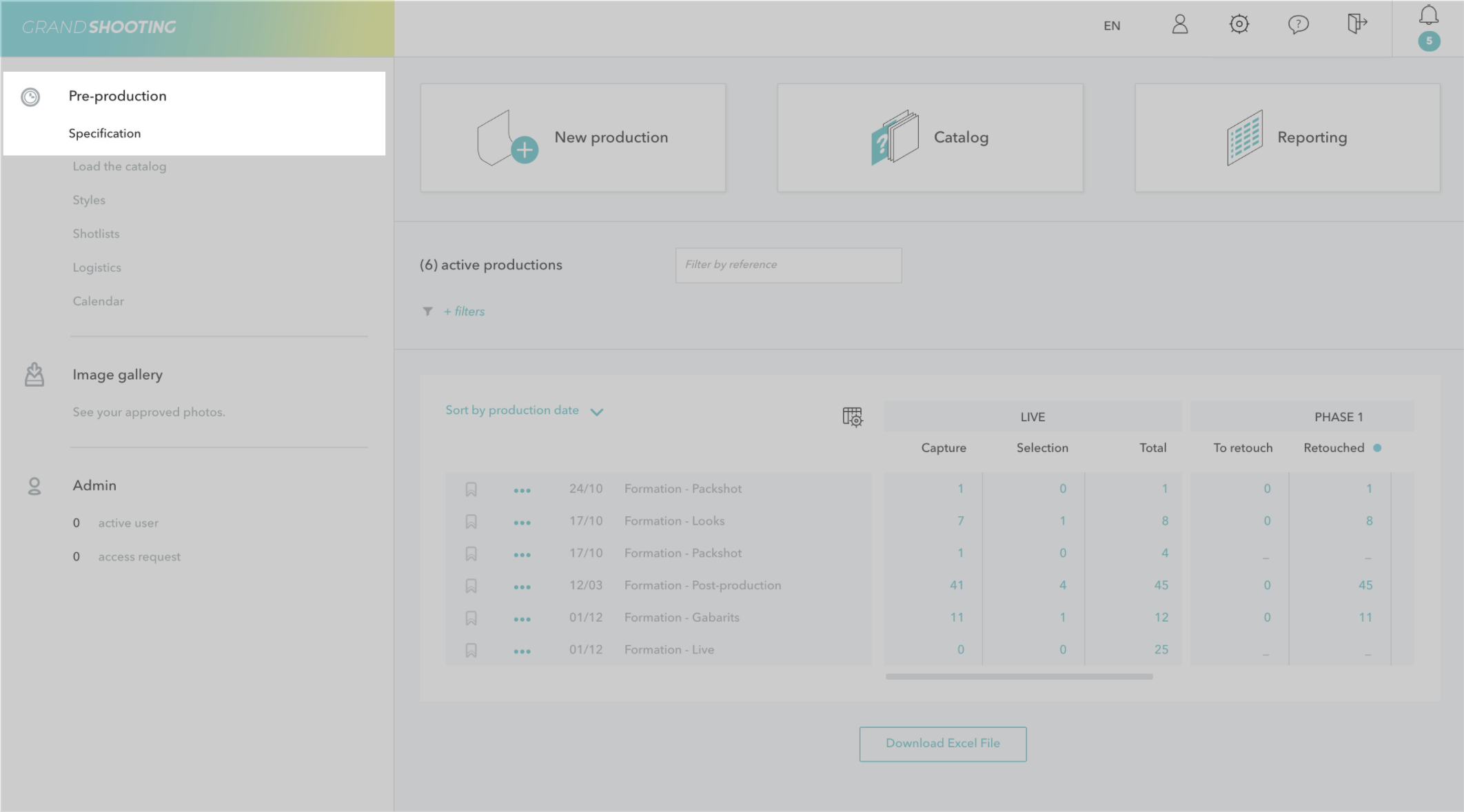
You arrive on the main page of the specifications which displays all your product categories.
The specifications are organized by product categories in order to adapt the number of views to the type of product.
For example:
By creating distinct categories, you get precise tracking in the catalog and in approval.
To create a category:
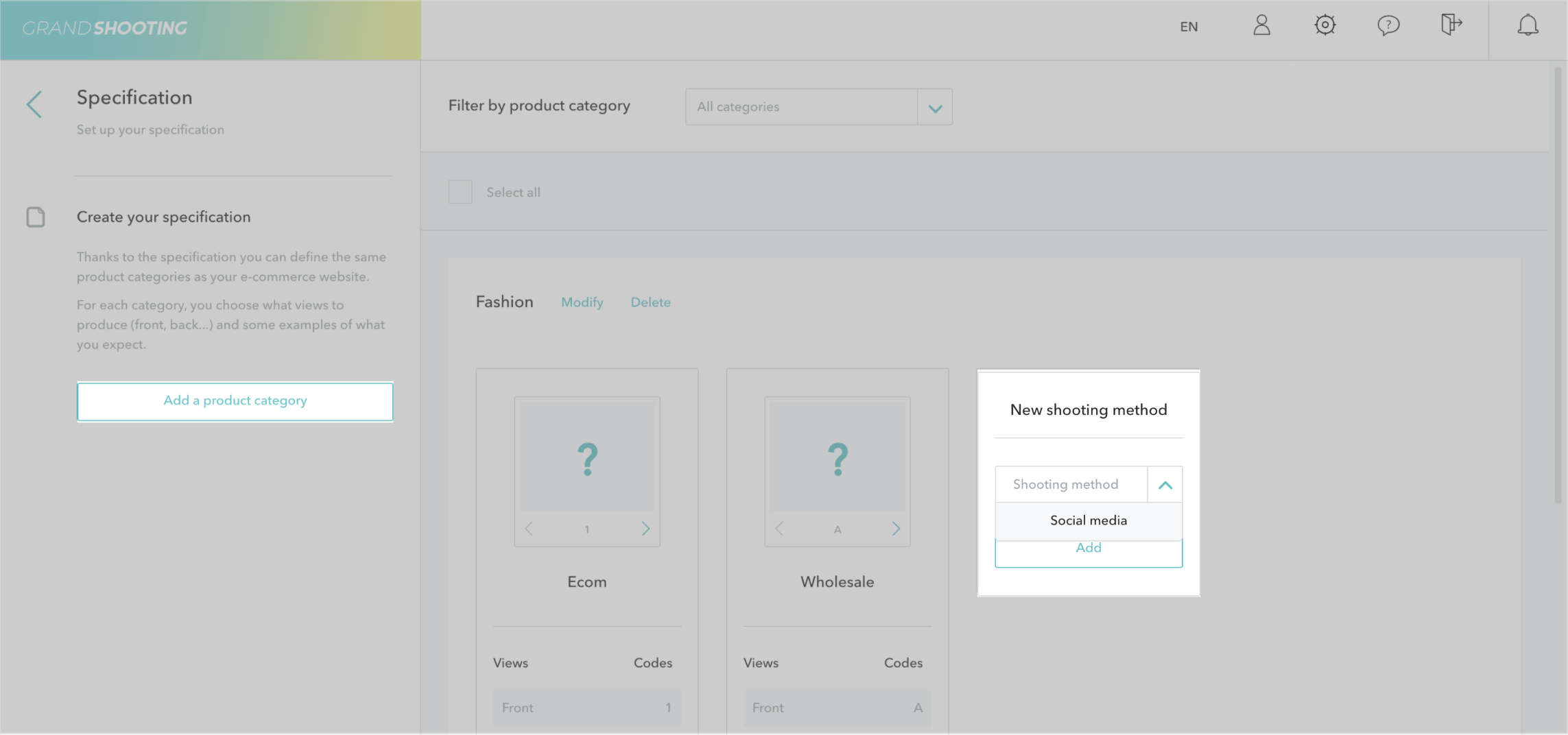
It can be burdensome to create as many categories as there are types of products in your brand. Take a step back and make logical groupings on categories that are similar in terms of the number of views and expected formats. You will gain in readability and simplicity of management!
[[gsGoodToKnow title="The default category"]]
You can create a category without a keyword that will automatically apply to all products not matching any other category. Handy for managing exceptions!
[[/gsGoodToKnow]]
Once your category is created, you need to define the views that compose it.
In your category, click on Add a view.
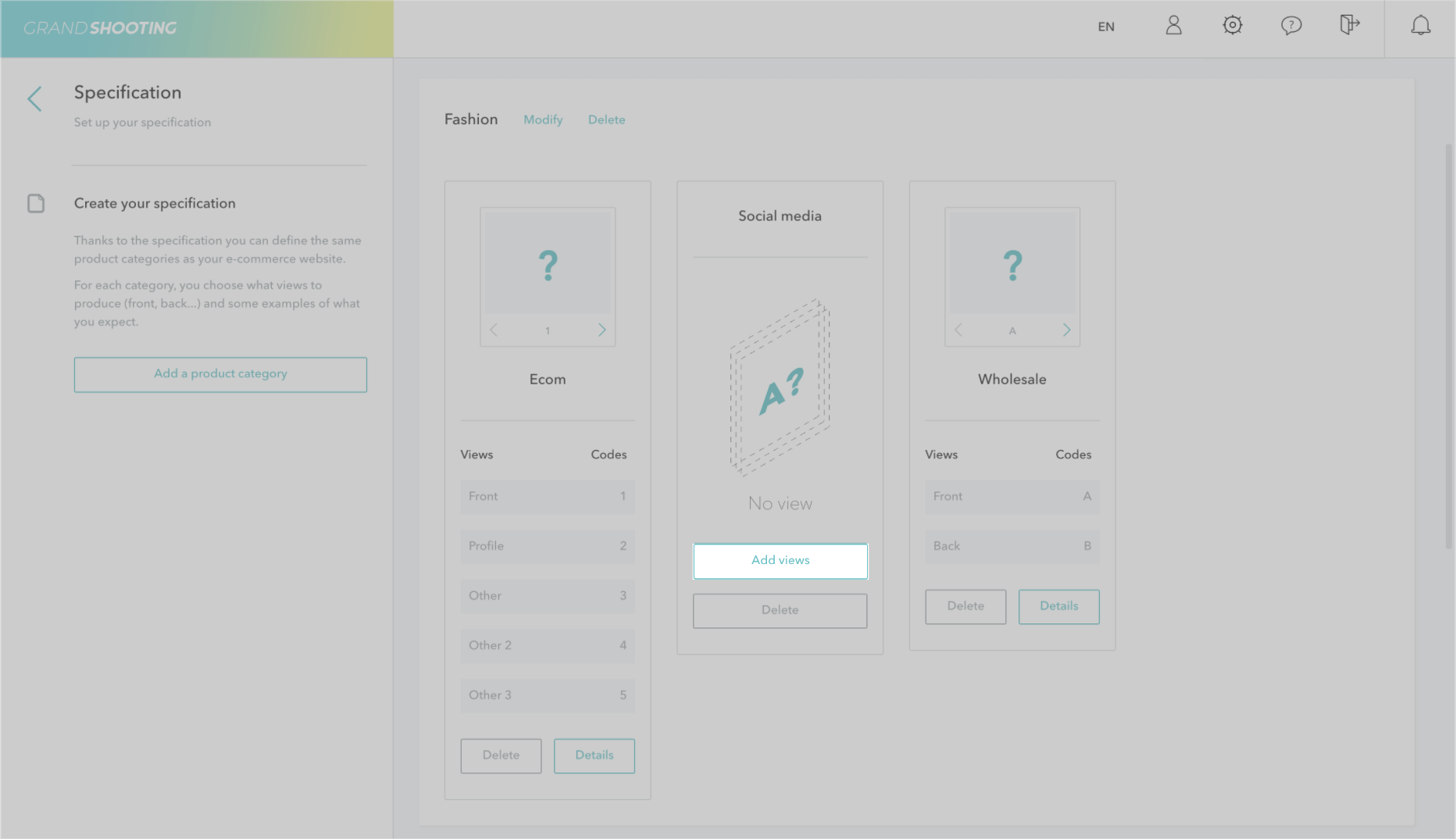
Enter the view information:
You can also upload example images or template images indicating margins to illustrate what is expected (very useful for production teams!)
Repeat the operation for all the views in your category.
[[gsGoodToKnow title="Good to Know"]]
The master images and/or templates uploaded in the views are displayed in approval and in the zoom by activating the Templates feature.
[[/gsGoodToKnow]]
Formats allow specifying the technical characteristics of the expected media:
You can have multiple formats available. By associating one or more formats with each view, you enable Grand Shooting to:
Example: A view may be expected in several formats (WEB + HD). It is then necessary to check the 2 formats for the concerned views.
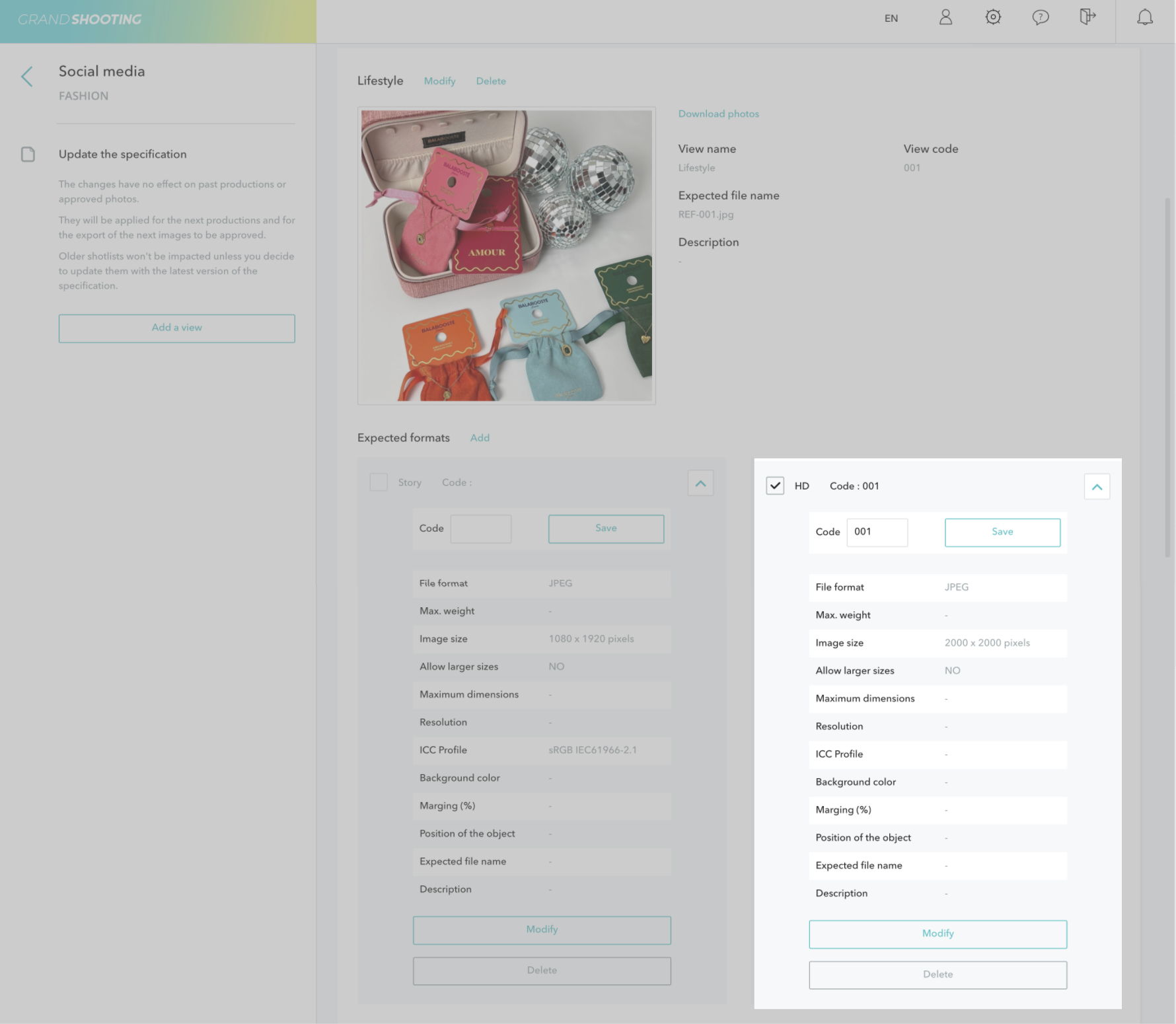
To associate formats:
[[gsGoodToKnow title="Good to Know"]]
If you want Grand Shooting to automatically control the conformity of formats during exports, remember to configure your exports accordingly and to associate the expected formats. Without this association, no alert will be raised. The format control raises alerts on the following points: file format, maximum weight, dimensions, resolution, ICC profile.
[[/gsGoodToKnow]]
Once your specifications are configured with your product categories, you need to tell Grand Shooting how to link a product in your catalog to the correct category to apply.
This is where keywords come into play.
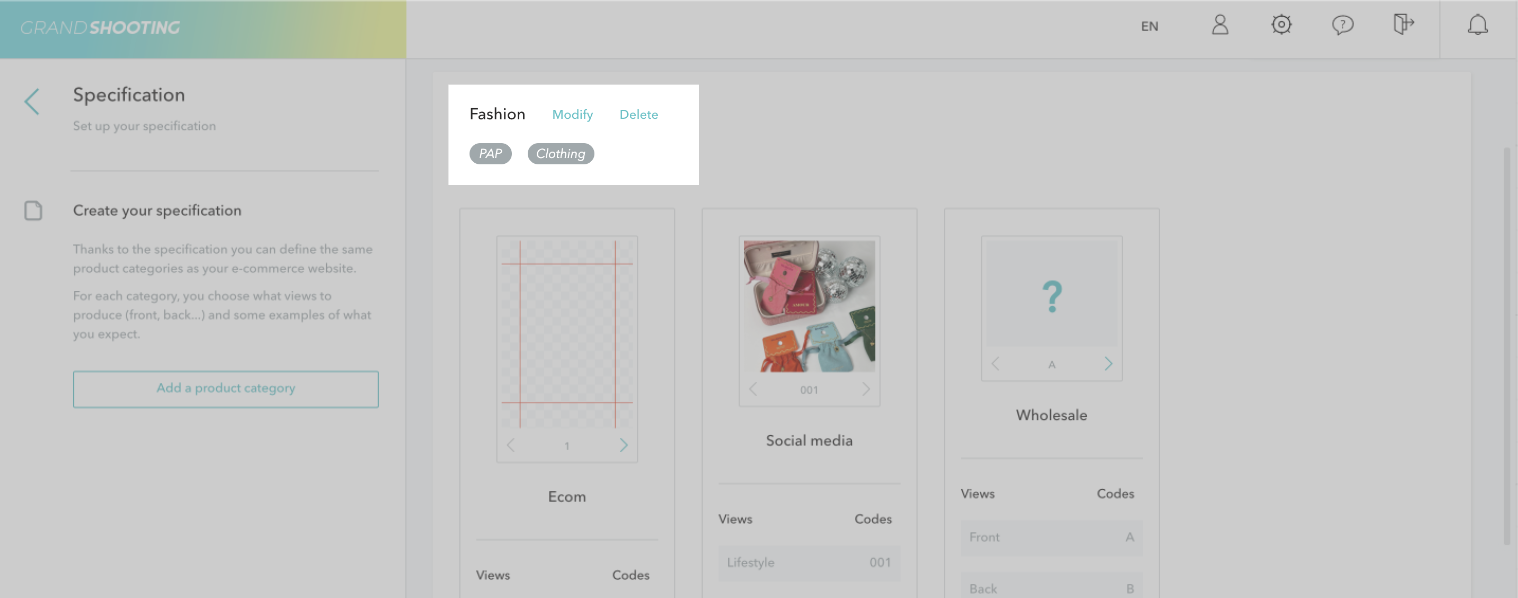
Example:
hat, scarvesshirt, chemiseshoes, chaussures[[gsGoodToKnow title="Good to Know"]]
You can define multiple keywords for the same category. This allows covering different names or languages used in your catalog.
[[/gsGoodToKnow]]
To add keywords:
Once your specifications are configured, you can extract them in PDF format to share with your teams or service providers.

✅ Access the specifications from Pre-production
✅ Create your product categories by grouping similar types
✅ Add the views with their names, codes, and example images
✅ Create and associate the technical formats expected for each view
✅ Define the keywords to link with your catalog
✅ Download your CDC in PDF to share


